How to Download Your Europass CV — 9-Step Guide (2026)
Note: This guide walks you through downloading a CV from the official EU Europass platform (europass.eu). If you'd rather skip the multi-step EU dashboard, you can build and export a Europass-format CV with Europass.ai in about 3 minutes — independent AI-powered builder, free to start.
If you've already created your Europass CV on europass.eu, the next step is downloading it so you can attach it to job applications. This guide walks you through every click — including the formats Europass offers, the differences between them, and the fixes for the most common problems we see job seekers hit.
Europass.eu vs Europass.ai: which one are you using?
Both create CVs in the same standardized Europass format that's accepted across the European Union. They are not the same product, and which one you should use depends on what you need.
| Feature | europass.eu (this guide) | Europass.ai |
|---|---|---|
| Run by | European Commission | Independent SaaS, not affiliated with the EU |
| Cost | Free, always | Free tier + €9.99/mo Pro |
| AI writing assistance | None | Built in (drafts each section from your raw input) |
| Templates | One official Europass layout | 6 ATS-friendly templates |
| Setup time | ~30–45 minutes the first time | ~3 minutes from blank to PDF |
| Languages | 30+ EU languages | 25 languages |
| Cover letters | Basic editor | AI-generated, job-tailored |
The rest of this guide covers the europass.eu download flow specifically. If you're not sure which platform you used, log in to both and check.
Step-by-step: download your CV from europass.eu
Step 1: Access the Europass website
Open your browser and go to europa.eu/europass. You can also search "Europass CV" in Google and click the official europa.eu result — the URL should always start with europa.eu. Anything else is a third-party site.
Step 2: Log in or create an account
If you've already created a CV, log in with your EU Login credentials (the unified European Commission single sign-on). If not, you'll need to register first — it takes about two minutes and only requires an email address and a password. Note that EU Login is the same account you'd use for other Commission services like CEDEFOP or EURES.
Step 3: Access your CV
Once you're signed in, you'll land on your Europass dashboard. The "My library" section lists every CV you've created. Click the title of the CV you want to download. Europass also stores cover letters and language passports here — make sure you're selecting the right document.
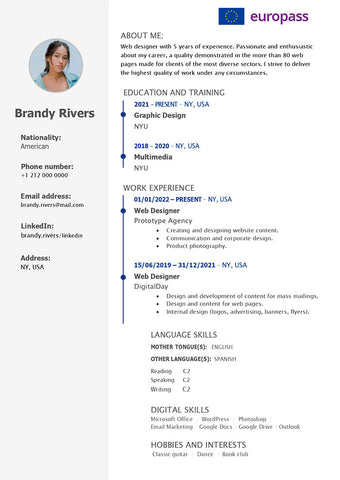
Step 4: Choose the download format
Europass offers three formats. Pick based on what you'll do with the file:
- PDF — best for most job applications. Locked formatting, opens on any device, looks identical to what the hiring manager sees on screen. This is what 90%+ of applicants should choose.
- Word (.docx) — use only if the employer specifically asks for it, or if you want to edit the CV outside Europass.
- Europass XML — machine-readable format used to re-import your CV into Europass later or to share with other Europass-compatible tools. Rarely needed for direct job applications.
Step 5: Review your CV before downloading
Before you click download, scroll through every section: personal information, work experience, education, language skills, digital skills. Look for empty fields you forgot to fill, dates in the wrong format (Europass uses DD/MM/YYYY in most locales), and any sections that say "Add a description" but were left blank. A quick fix in the Europass editor takes seconds; spotting it after applying to a job is awkward.
Step 6: Initiate the download
Click the download button next to your chosen format. Europass renders the file on their server and triggers a browser download. Depending on your connection and how much content you have, this usually takes 2–5 seconds. The file will appear in your browser's default Downloads folder.
Step 7: Save the file with a clear name
Europass names files like Curriculum_Vitae.pdf by default. Rename it to something the hiring manager can identify at a glance — for example, Maria_Rossi_CV_Europass.pdf. This matters more than people think: recruiters often handle dozens of CVs per role, and a named file beats a generic one.
Step 8: Open and review the downloaded CV
Open the file before you send it. Check that all sections rendered correctly, that special characters (accents, non-Latin scripts) display properly, and that no text is cut off at page breaks. PDF readers handle Europass fonts inconsistently — if something looks off, regenerate the file or switch format.
Step 9: Share your Europass CV
Attach the file directly to job applications, email it, upload it to LinkedIn or EURES, or print physical copies. The Europass format is widely recognized by EU employers, educational institutions, mobility programs (Erasmus+), and an increasing number of non-EU employers familiar with the standard.
Common issues and how to fix them
The download button does nothing when I click it. Disable your ad blocker on europa.eu and try again. The Europass site uses an internal API endpoint that some blockers misclassify as third-party.
The PDF opens but the formatting looks broken. This usually happens when an old browser cache serves the previous render. Re-download the CV, or switch from PDF to Word and back to flush the cache.
I can't find my CV in the dashboard. Check that you're logged into the same EU Login account you used to create it. A surprisingly common scenario: people create the CV from one email then sign in with a different one. The CV is tied to the account, not the device.
My language characters aren't displaying. The PDF renderer occasionally drops support for non-Latin scripts (Greek, Cyrillic, Devanagari). If this affects you, regenerate the file or use the Europass.ai builder which uses a different PDF engine.
Frequently asked questions
What's the difference between europass.eu and Europass.ai?
europass.eu is the official European Commission service — free, basic, no AI assistance. Europass.ai is an independent third-party builder that uses the same standardized Europass format but adds AI content drafting, more templates, and faster export. Both produce CVs accepted by EU employers. Europass.ai is not affiliated with the European Union.
Can I download my Europass CV without creating an account?
On europass.eu, no — you need an EU Login account to save, edit, or download. On Europass.ai, you can start building immediately and only need to sign up when you download.
Which file format should I send to employers — PDF, Word, or XML?
PDF in almost every case. It locks the formatting so the recruiter sees exactly what you intended. Send Word only if the employer asks for it. XML is for re-importing into Europass-compatible tools, not for sending to humans.
How do I update my Europass CV after I've downloaded it?
Log back into europass.eu, open the CV in the editor, make your changes, and download again. The downloaded file is a snapshot — editing it in Word won't update the version on Europass.
Is the Europass CV format accepted by employers outside the EU?
Increasingly yes. UK, Norway, and Switzerland employers typically accept it without issue. Outside Europe, the format is less familiar — for US, Canada, or APAC applications, you may want to convert to a region-specific resume layout. Europass.ai offers a one-click conversion to international resume formats.
What to do next
Once your CV is downloaded, the next step is tailoring a cover letter to the specific role. The official Europass site has a basic cover letter editor, or you can use Europass.ai's AI cover letter generator that drafts a tailored letter in seconds based on the job description and your CV.
And if you find yourself rebuilding your CV every time you apply for a different role, that's a sign it's time to switch tools. The point of a CV builder is to make iteration cheap. Try Europass.ai free — generate a Europass-format CV in 3 minutes, then export as many variations as you need.
Great CVs get work done
Work smarter with the CV builder trusted by skilled workers for more than a decade.
It's easy
